The NSS platform
The platform — how it works
NSS is a platform for a footballer’s development, not a talent-search service. One path: from understanding what happens in the game to opportunities.
We assess the game, not the child: no scores, no ratings, no labels.
Learning and training on the platform will open once they are ready. You can register right now.
The player’s path, step by step
The platform is coming soon.
The platform interface is shown in English. Other languages will follow later.
- 1
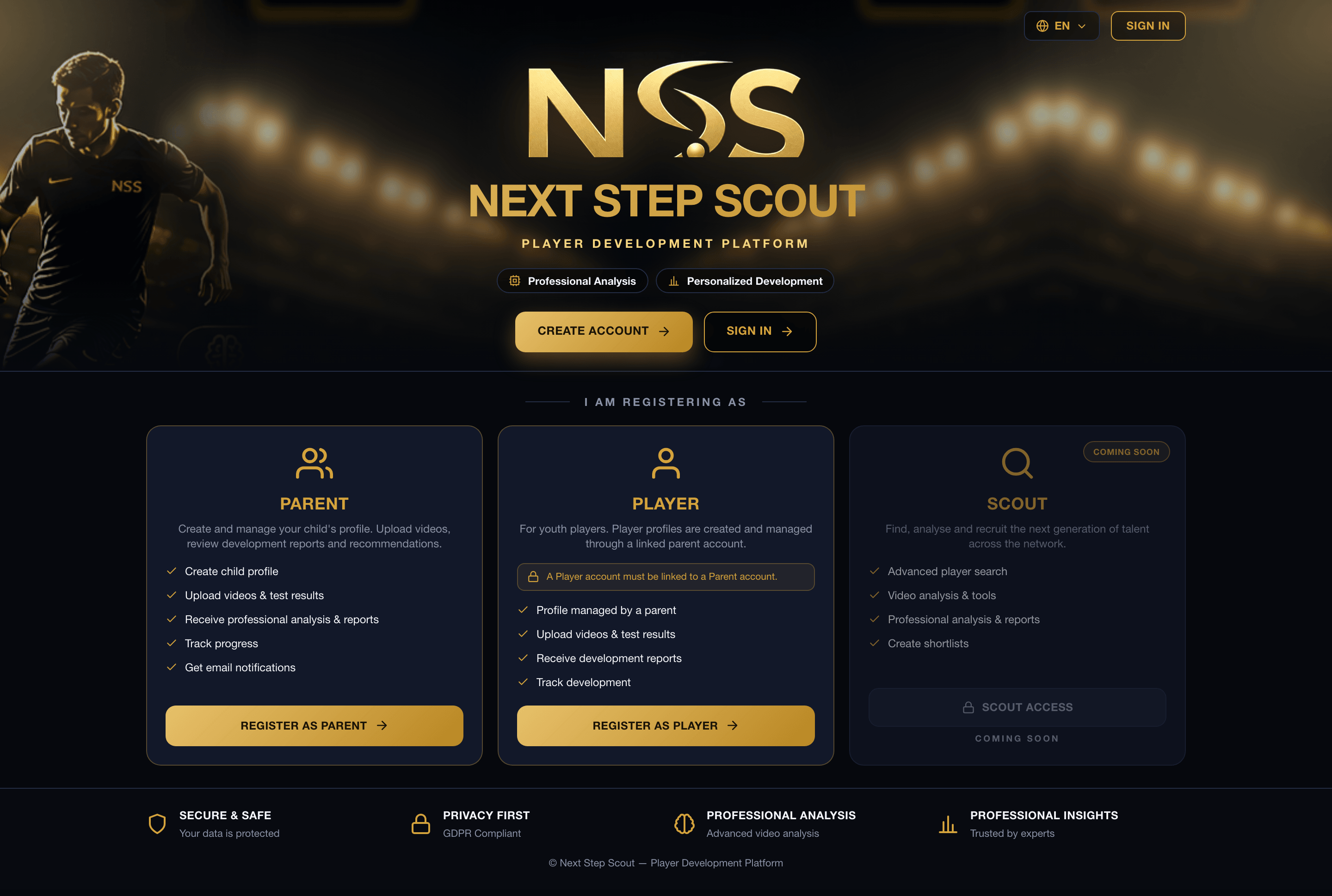
Registration and profile form
What to do. For players under 18, a parent or legal guardian registers the child. The form asks for the player’s position on the pitch.
What you get. A player profile. By default the profile is closed: only you and NSS can see it. An academy sees the profile only after the child is linked to it and you give consent. Granting access to anyone else is a separate decision by the parent.
- 2
Qualities for your position
What to do. Nothing — the answer comes on its own.
What you get. Straight away, with no waiting and no payment: which qualities you need for this position. It is a guide to what to develop, not an assessment of the player.
- 3
Tests for your position and age
What to do. Open your own set of tests.
What you get. Tests matched to your position and age. Each one has a description: what to do, how to film it, what the benchmark is. The first tests of the first level are required for a newcomer.
- 4
Filming and uploading the video
What to do. Do the test, film it on a phone following the instructions, and upload it.
What you get. The child’s video is closed by default; under 18, the upload proceeds after the parent’s consent. Before a video is processed, it is checked by a moderator — a person, not just an automatic filter.
- 5
Result and comparison with the benchmark
What to do. Open the result in your account.
What you get. What was measured, your result and the age-group benchmark — as a range. What went well and what we are working on. Status — “Level passed” or “Keep training”. An example screen is below.
- 6
Exercises
What to do. Do the exercises.
What you get. Specific exercises aimed at what we are working on — targeted work, not general advice. You can start as soon as your next training session.
- 7
Date of the next attempt
What to do. Come to the retest on the assigned day.
What you get. A date from the platform. Reminders go to the parent: a week before, a day before, and on the third day if it is overdue. The child gets a task card in their account, with no intrusive notifications.
- 8
Progress
What to do. Check your account.
What you get. Comparison only with your own past self: previous result, current one and the difference. “A step forward”, “holding steady” or “no change yet”. A personal best. Never against other children.
Example result screen
Keep training.
- What we measured: 30 m sprint.
- Your age-group benchmark: 4.3–4.9 s.
- Your result: 4.7 s.
- Went well: the start.
- Working on: acceleration.
- Three exercises are below.
- Next attempt — 4 October.
Example. The figures are illustrative.
How you will train
Training on the platform runs by levels, not on a “day-by-day” schedule.
- A level unlocks its own set of tests.
- For each test passed — a medal next to your avatar.
- Based on the result — “level passed” or “keep training”, with a clear plan.
- For what did not work yet, the platform gives you exercises.
- The retry has a date; come and try again.
- Pass a level — the next one opens. The whole path ahead is visible: which tests come next and what the benchmark is for each.
The streak counts by cycles, not by days: not “day 1, day 2, day 3”, but “pass a level — the next one opens”. The platform does not push you to train every day.
What the parent, coach and scout see
Parent
Everything the player sees, plus the full history of attempts and benchmarks as ranges. At this age, physical tests partly measure biological maturity rather than ability; there is no ranking among children.
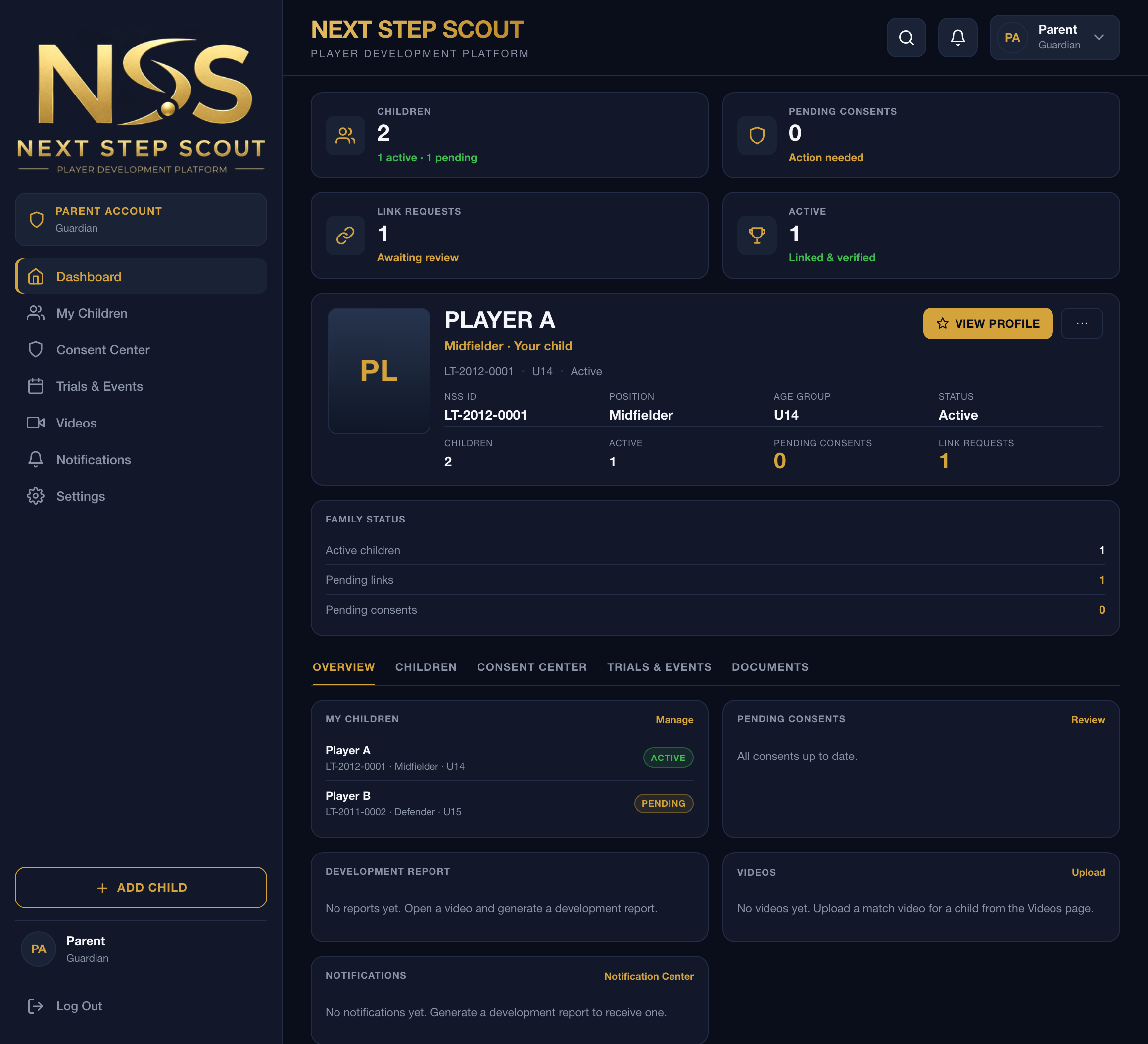
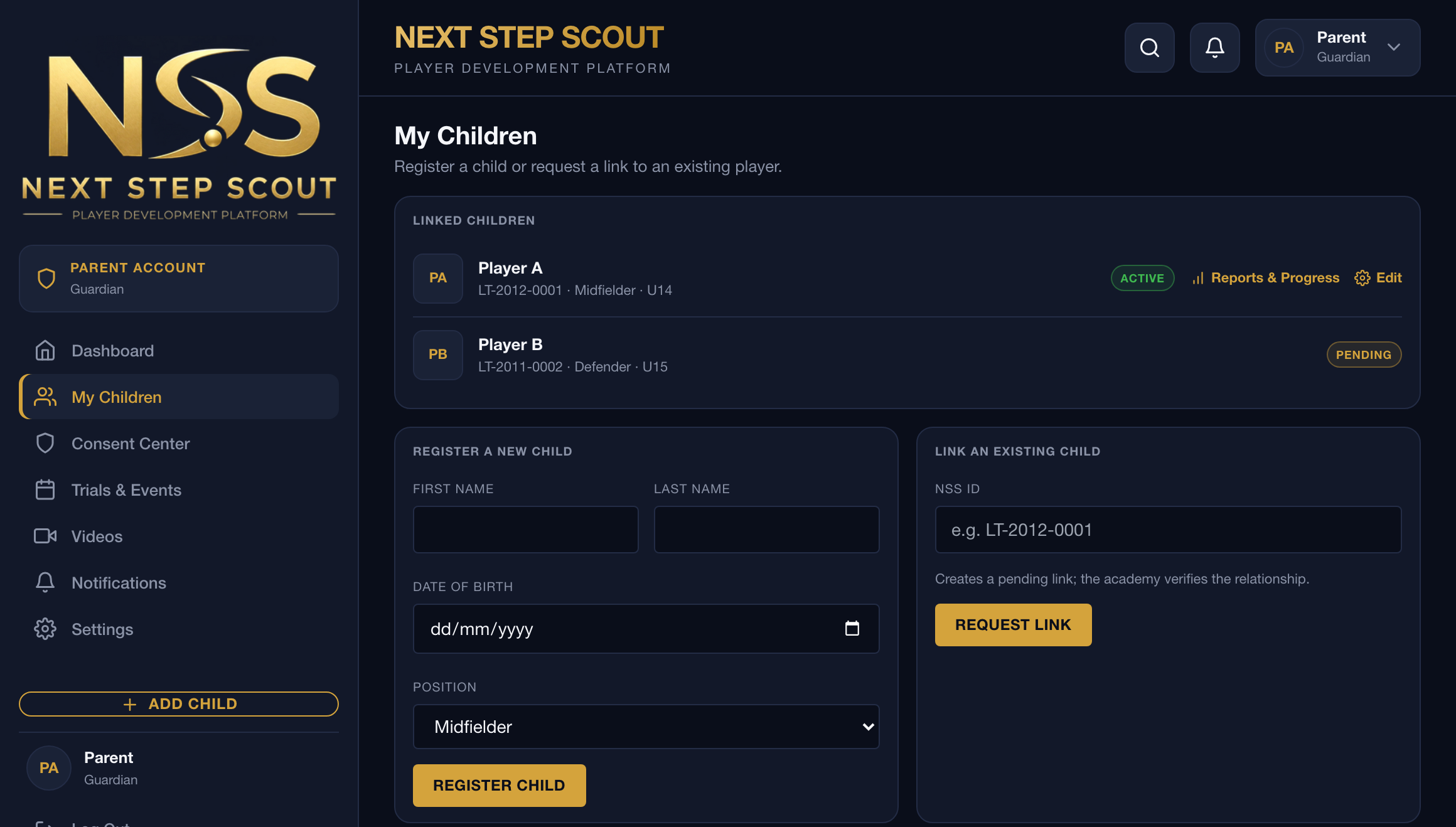
The platform interface is shown in English. Other languages will follow later.
Coach (through the academy)
Measurements and history of their own players. The comparisons a coach sees are not shown to the child.
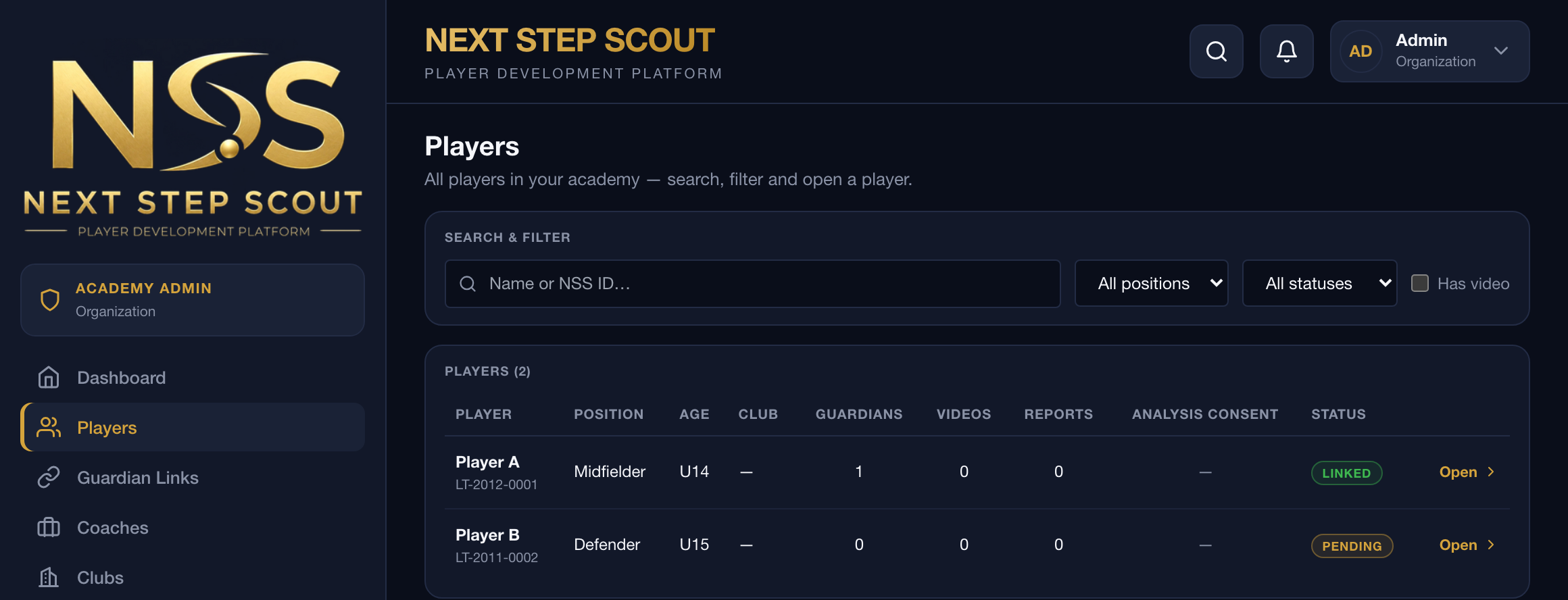
The platform interface is shown in English. Other languages will follow later.
Scouts (later)
Verified clubs and scouts will be able to look for players on the platform — but only where the parent has given consent, and visibility cannot be bought.
You can register right now
What to do
- Click “Register” — the site’s registration form opens.
- Fill in: name, email, phone (optional), country.
- Leave a pre-registration for the platform.
- Confirm your email via the link in the message.
What you get. You are registered with NSS. When learning and training on the platform open, we will write to this email.
When the platform opens
Then everyone will get access to the platform account. The parent will log in and keep the child’s profile; a player aged 18 or over keeps their own profile.
Exactly how the login will work, we will show closer to launch.